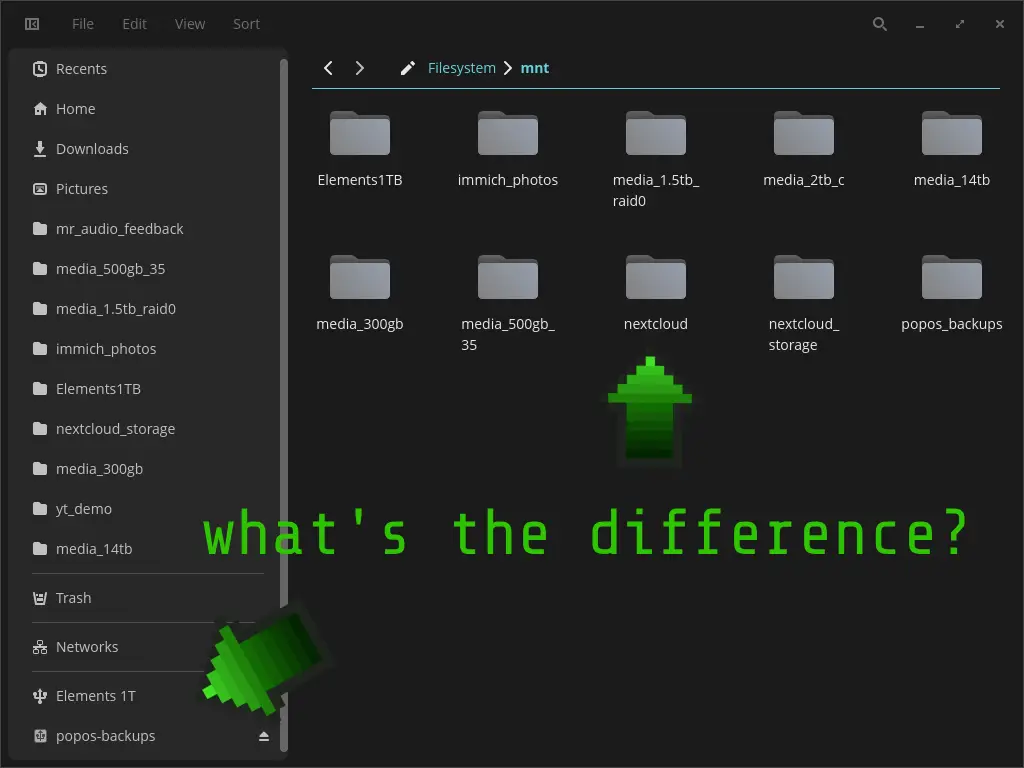
How Linux thinks about your drives
If you’ve ever wondered why plugging in a USB drive just works, but your internal drives are always there waiting at boot, it’s not magic. Linux has two distinct systems for handling storage, and understanding the difference makes a lot of everyday frustrations suddenly make sense.
Permanent drives: fstab
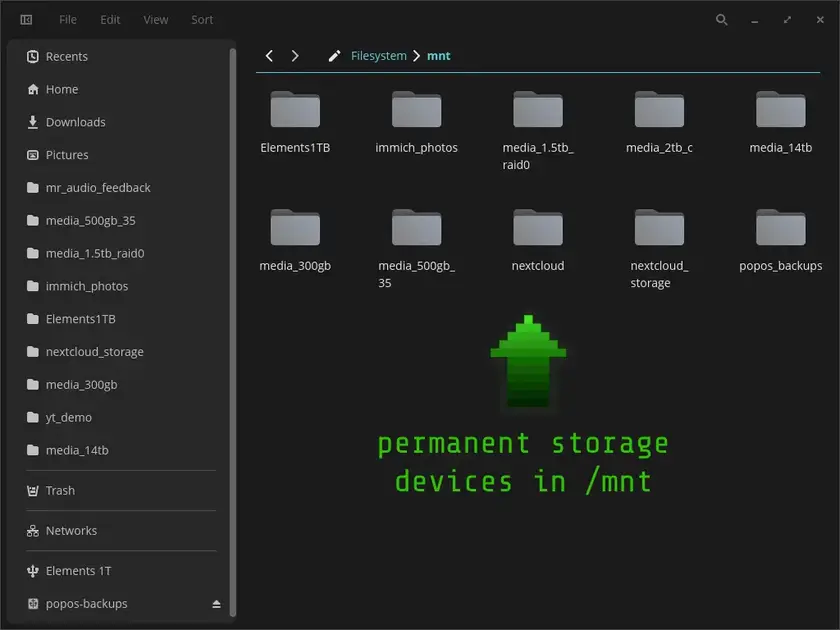
For drives that are always connected like your main SSD, a dedicated storage drive, a NAS mount, Linux uses a configuration file called /etc/fstab. This file is essentially a list of instructions that tells the system what to mount, where to mount it, and how, every time the machine boots.
Think of fstab like a seating chart. Before the party starts, every drive already has an assigned seat. When the system boots, it reads the list and puts everything exactly where it’s supposed to be. No improvising.
Entries in fstab use a fixed mount point, typically under /mnt/. It’ll look something like /mnt/storage or /mnt/backup. That path is stable and predictable, which matters when other software depends on finding files in a specific location. Docker containers, backup tools, and media servers all benefit from knowing exactly where a drive will be, every single time.
Here’s what my fstab looks like (a bit redacted for brevity):
# <file system> <mount point> <type> <options> <dump> <pass>

UUID=XXXXXXXX      /                       ext4    noatime,errors=remount-ro             0 1
PARTUUID=XXXXXXXX  /boot/efi               vfat    umask=0077                            0 2
UUID=XXXXXXXX      /mnt/photos             ext4    rw,noatime,nofail,x-gvfs-hide         0 2
UUID=XXXXXXXX      /mnt/wdelements         ntfs-3g defaults,nofail,uid=1000,gid=1000...  0 0
UUID=XXXXXXXX      /mnt/storage1           ext4    rw,noatime,nofail,x-gvfs-hide         0 2
UUID=XXXXXXXX      /mnt/storage2           ext4    rw,noatime,nofail,x-gvfs-hide         0 2
UUID=XXXXXXXX      /mnt/storage3           ext4    rw,noatime,nofail,x-gvfs-hide         0 2
UUID=XXXXXXXX      /mnt/media              ext4    rw,noatime,nofail,x-gvfs-hide         0 2
PARTUUID=XXXXXXXX  /recovery               vfat    umask=0077                            0 0
UUID=XXXXXXXX      none                    swap    defaults                              0 0
UUID=XXXXXXXX      /mnt/backups            ext4    rw,noatime,nofail,x-gvfs-hide         0 2
Each field tells Linux something specific: which device to use (identified by UUID rather than a device name that can change), where to mount it, what file system it uses, and how to handle it if something goes wrong.
Removable drives: udisks2 and automounting
Plug in a thumb drive or an SD card and something different happens. A background service called udisks2 detects the new device, mounts it automatically under /media/yourusername/drivelabel, and your file manager shows it in the sidebar with a little eject button. Unplug it and the mount point disappears entirely.
This is the automount system and it’s designed for convenience over consistency. You don’t configure anything. udisks2 handles the whole chain automatically: the kernel detects the hardware, fires an event, udisks2 picks it up, mounts it, and your file manager reflects it instantly.
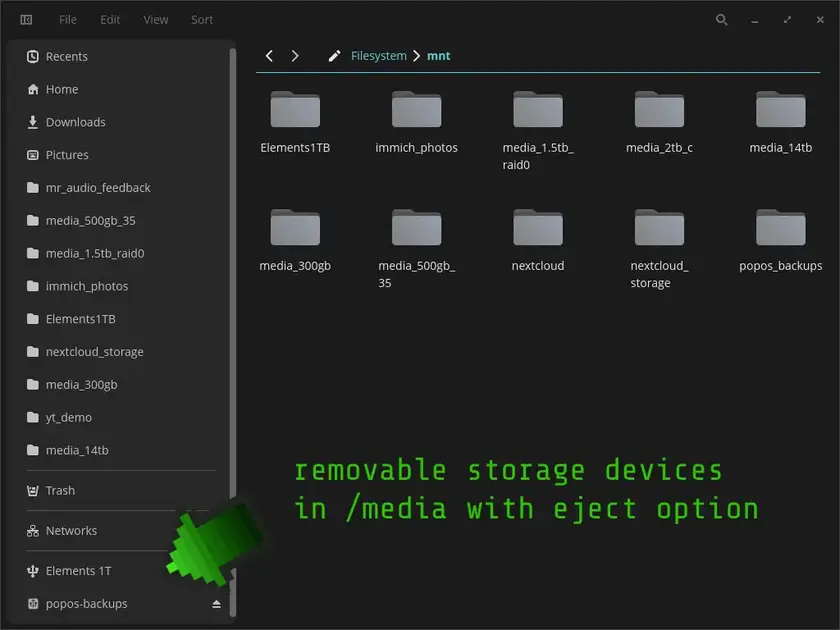
The tradeoff is that the mount path isn’t predictable. Instead, it’s based on the drive’s label or UUID and tied to your desktop session. That’s fine for moving files around but it can cause problems if a privileged tool needs to write to the drive. The difference is that the udisks2 removable drives are owned by your user session as opposed to the mounted drives from fstab, which are owned by the sytem. For example, I ran into this issue when I attempted to run a backup using aptik and save it to my UBS thumb drive. aptik refused to use the thumb drive until I mounted it using fstab. What caused the issue? aptik runs as a root service and because my user owned the udisks2 mount the thumb drive was bound to, aptik couldn’t use my drive because root didn’t own it.
Why It Matters
The practical takeaway is straightforward. If something depends on a drive (a service, a backup tool, anything running as root) put it in fstab with a fixed mount point. If you’re just plugging in a drive occasionally to transfer files, let the automounter handle it and don’t overthink it. Most of the time Linux handles this invisibly. The two systems coexist without conflict, each handling the drives it’s meant for. But what if something goes wrong, like a backup tool that won’t write, a container that can’t find its data, a drive that doesn’t show up where you expect? Knowing which system is in charge points you straight to the solution.
# run this command on your computer and see what yours looks like
username@computername:~$ lsblk -o NAME, MOUNTPOINT, FSTYPE
NAME          MOUNTPOINT                      FSTYPE
sda           /mnt/media                      ext4
sdb           /mnt/backups                    ext4
sdc
├─sdc1        /boot/efi                       vfat
├─sdc2        /recovery                       vfat
├─sdc3        /                               ext4
└─sdc4                                        swap
  └─cryptswap                                 swap
sdd           /mnt/photos                     ext4
sde
└─sde1        /mnt/wdelements                 ntfs
sdf           /mnt/storage1                   ext4
sdg           /mnt/storage2                   ext4
sdh           /mnt/storage3                   ext4
sdi
└─sdi1        /media/seth/usbdrive ext4
sdj
└─sdj1                                        ntfs
zram0         [SWAP]